Here you can find Step-by-Step guide how to connect to the VPN with the Android TV.
Step-by-Step guide
Install application
Open Google Play, find and install application
Downloader by AFTVnews, or open by direct link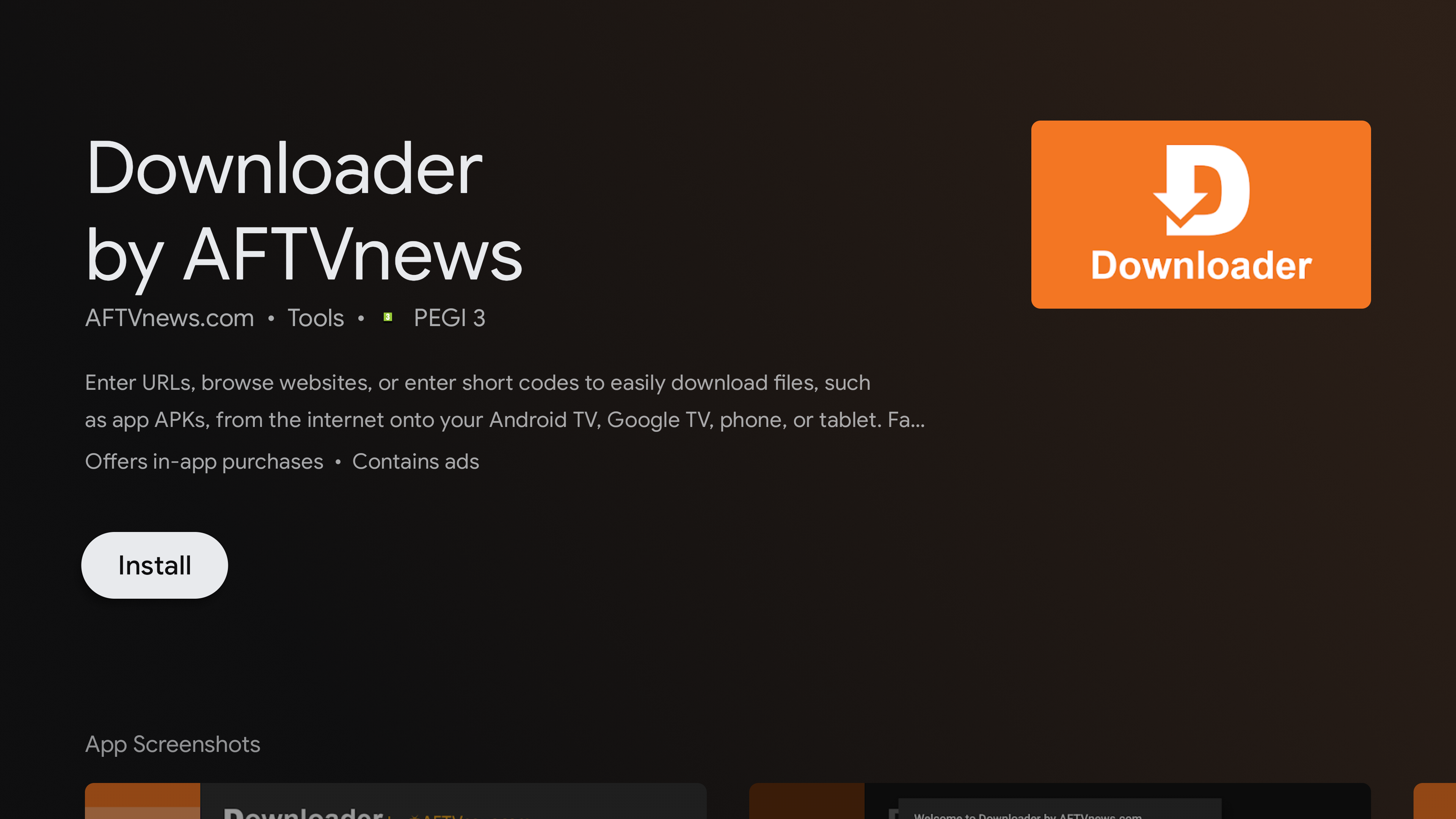
An application that allows you to download third-party APKs to install them on your device
Launch the application, put link
pq.md/cfato the form and pressGo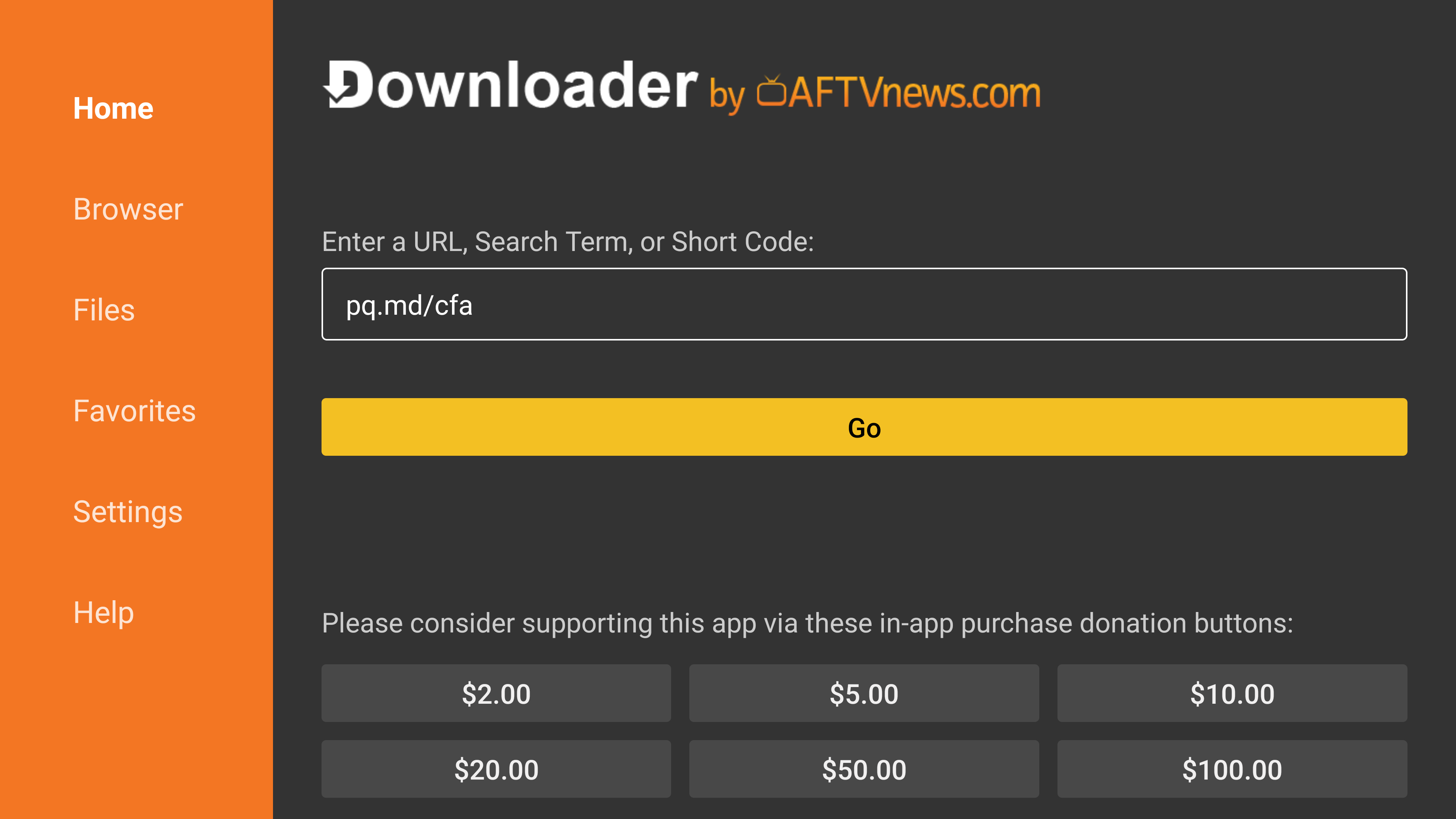
Application interface for downloading and installing applications from APK
Grant permission to install the application
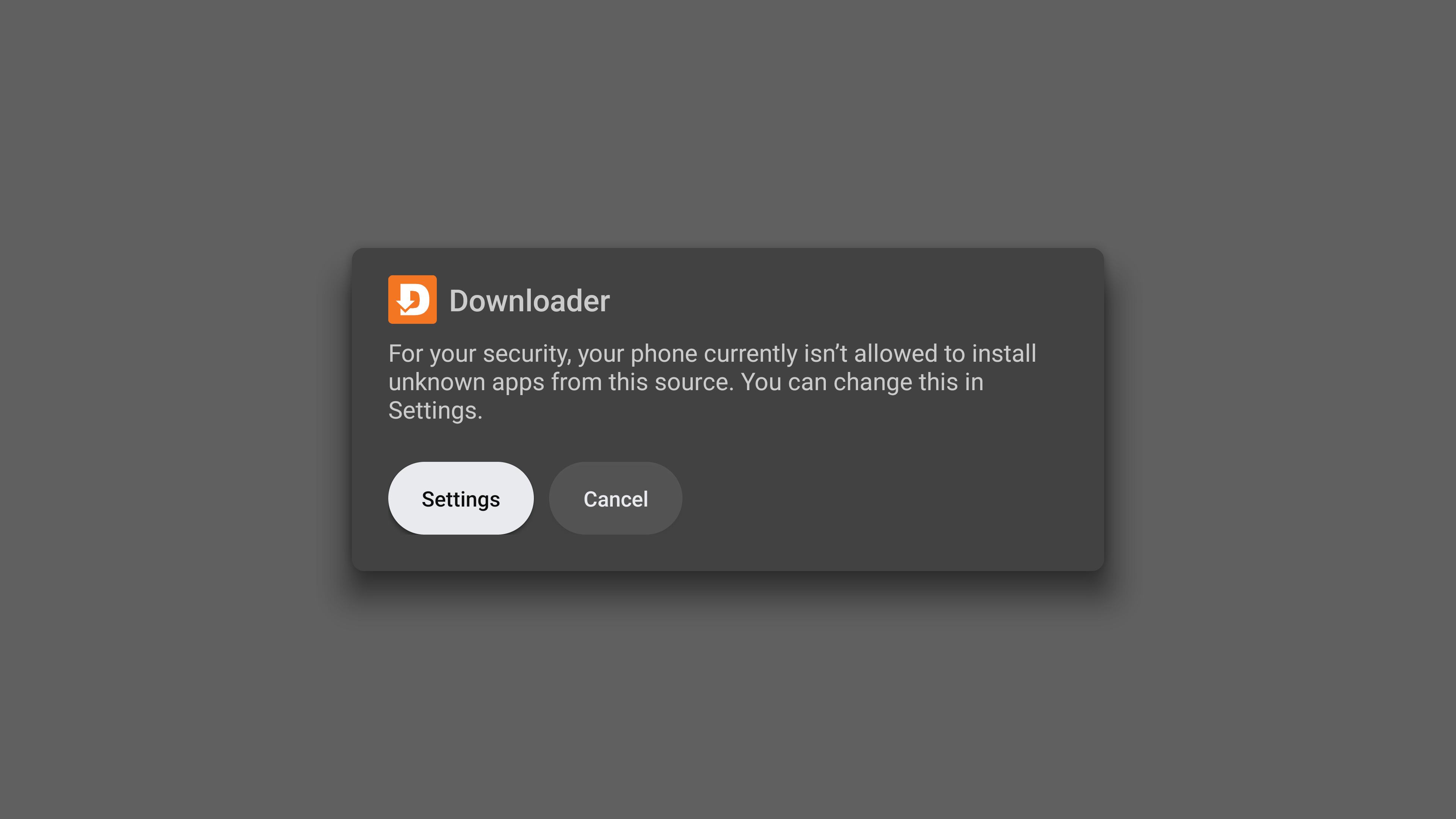
Request permission to install apps from APK
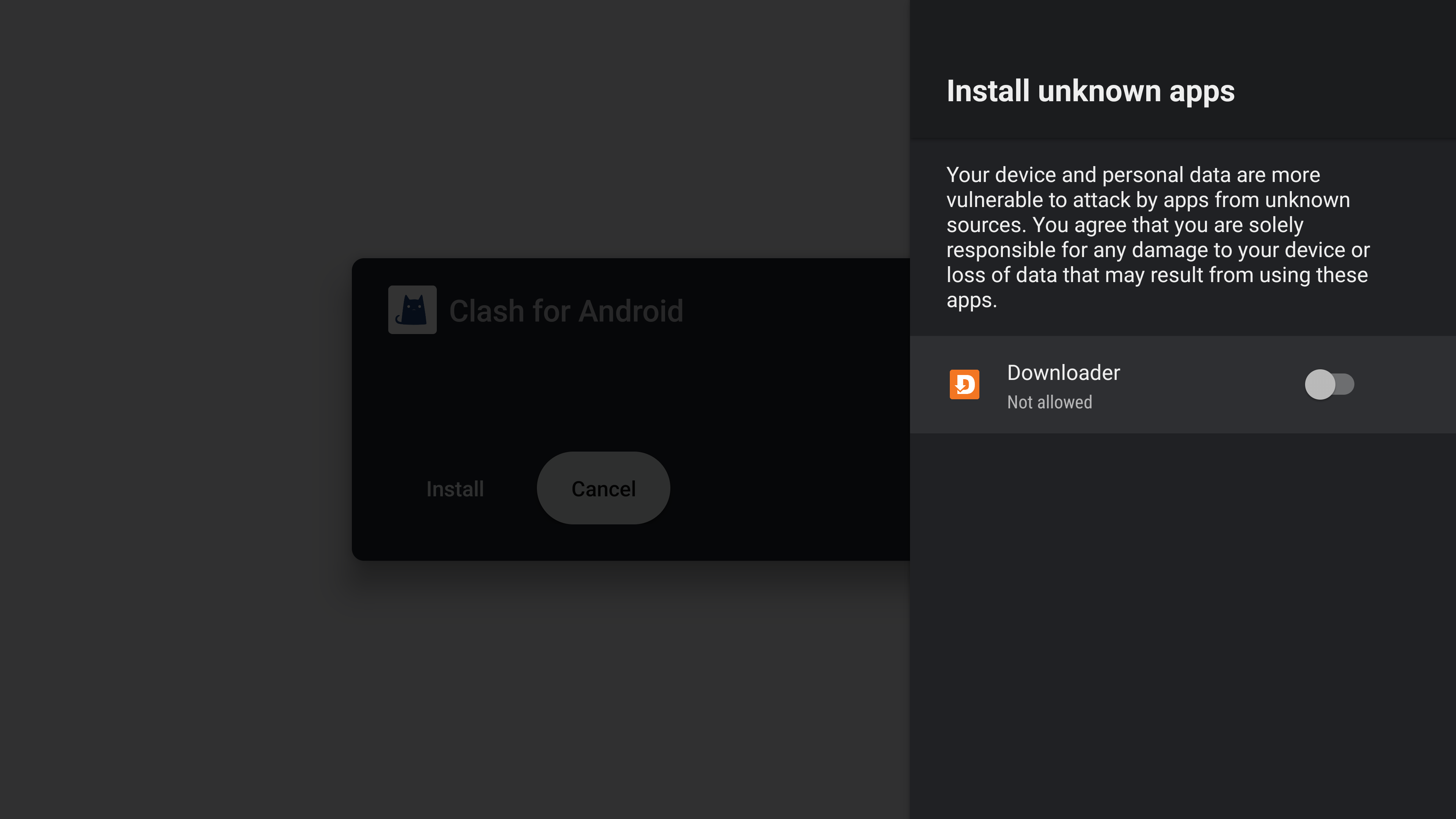
Granting permission to install applications from unknown sources
Install and launch the
Clash for Androidapp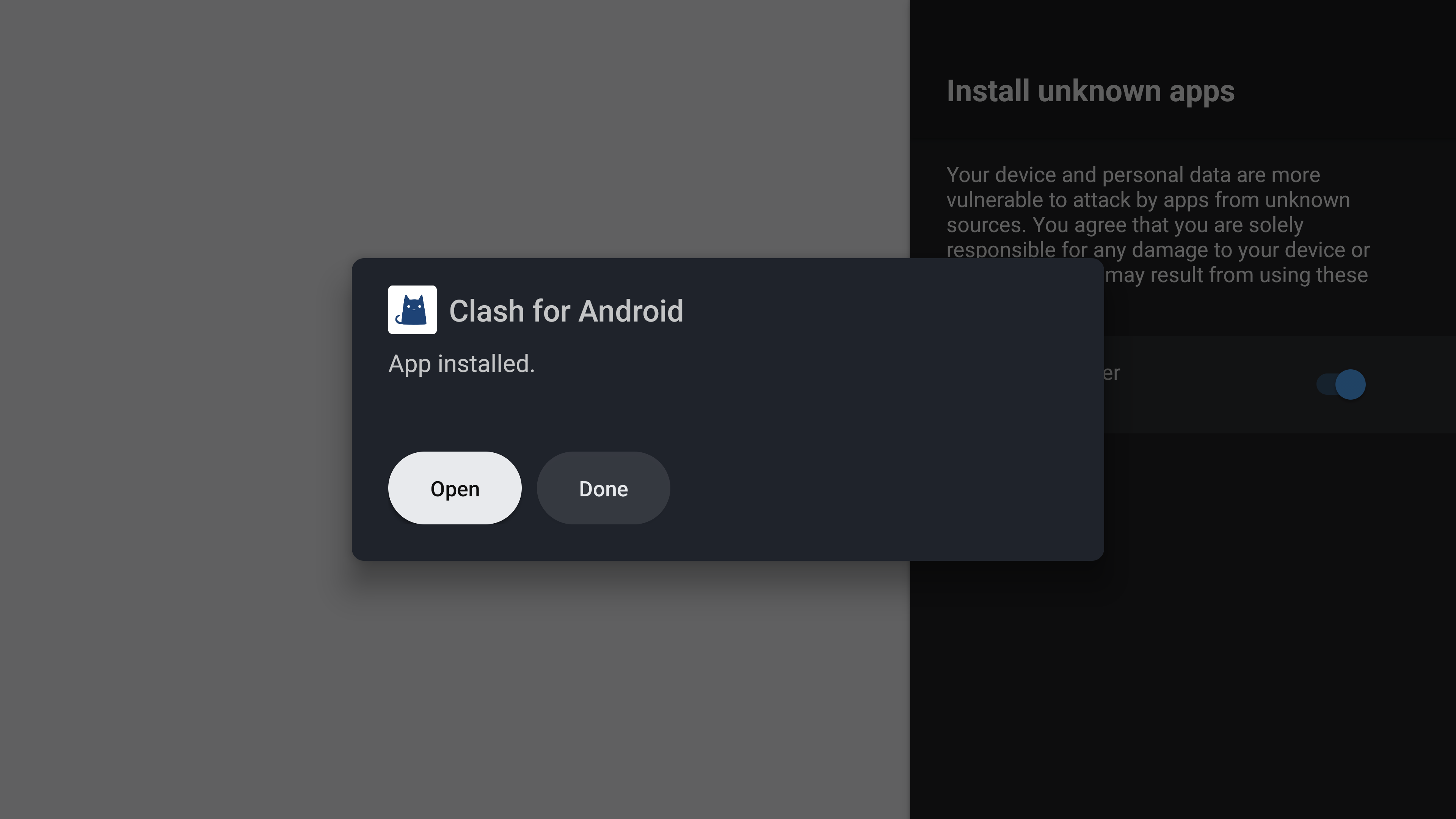
Dialog box after successful installation of Clash for Android application
Import profile
Go to
Profileto import your subscription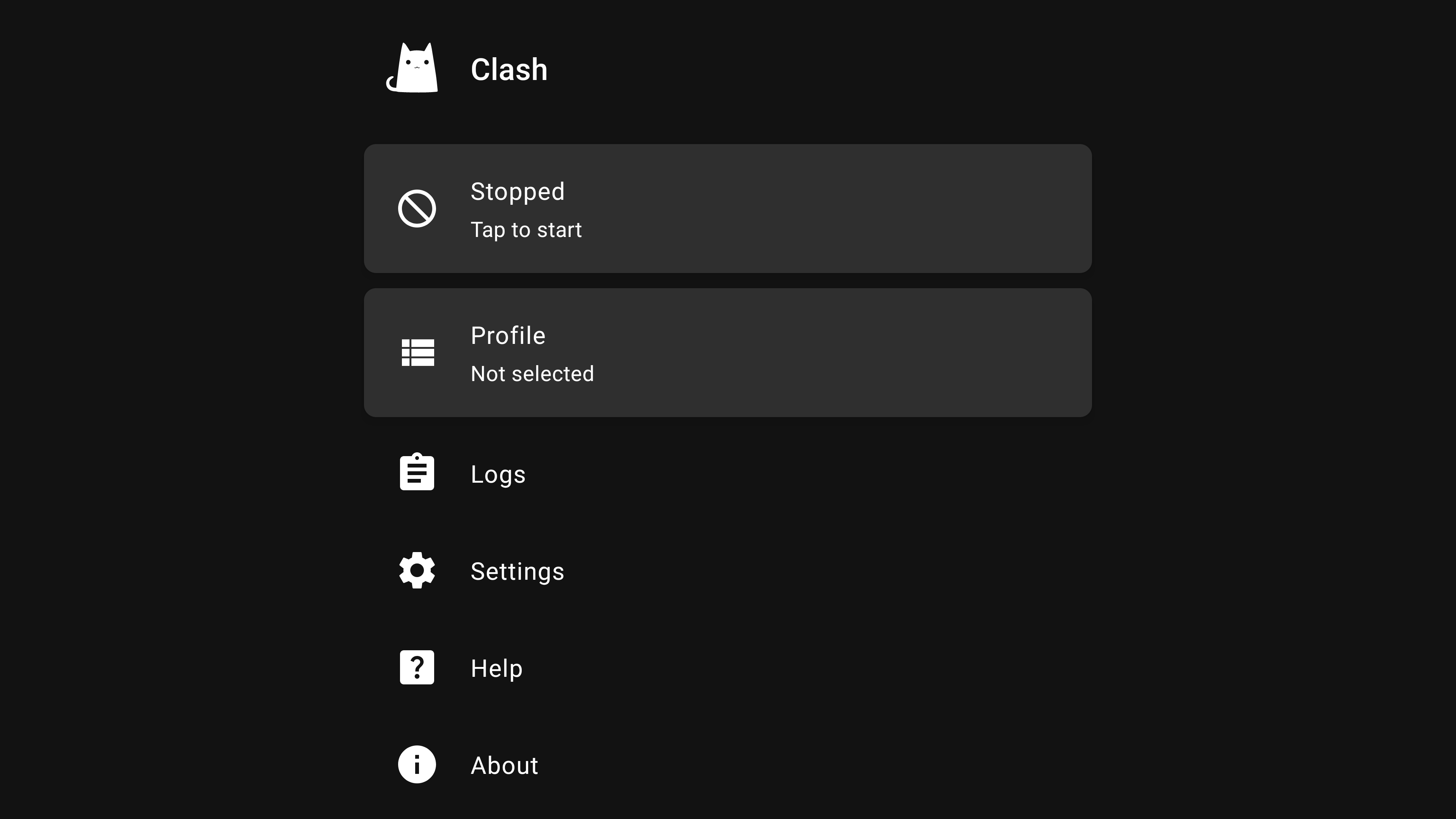
Clash for Android application interface
Click on the
+at the top and selectImport from URL
Section where VPN profiles will be added
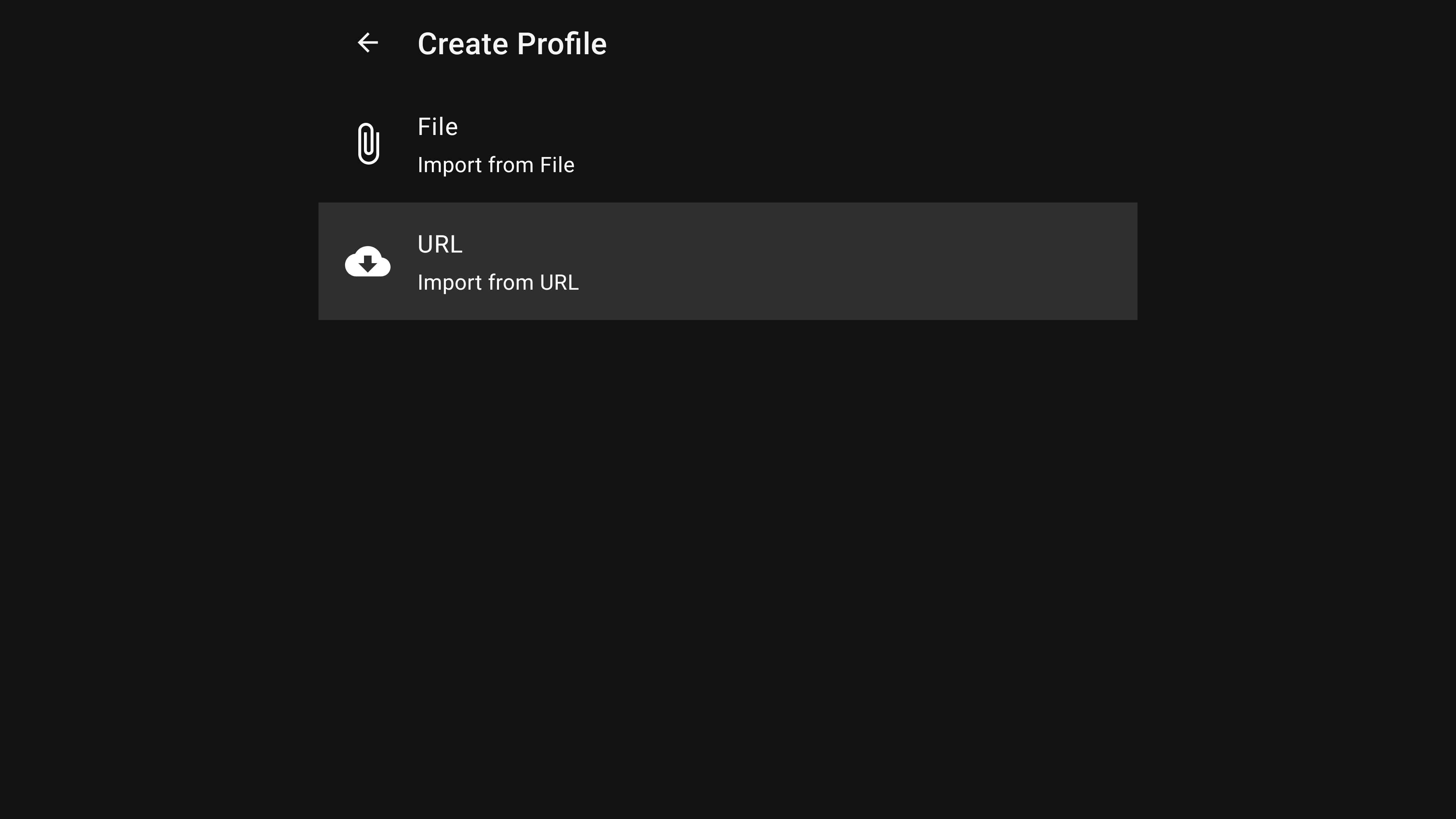
Import of profiles is available via URL and from file
Specify the parameters as in the screenshot below
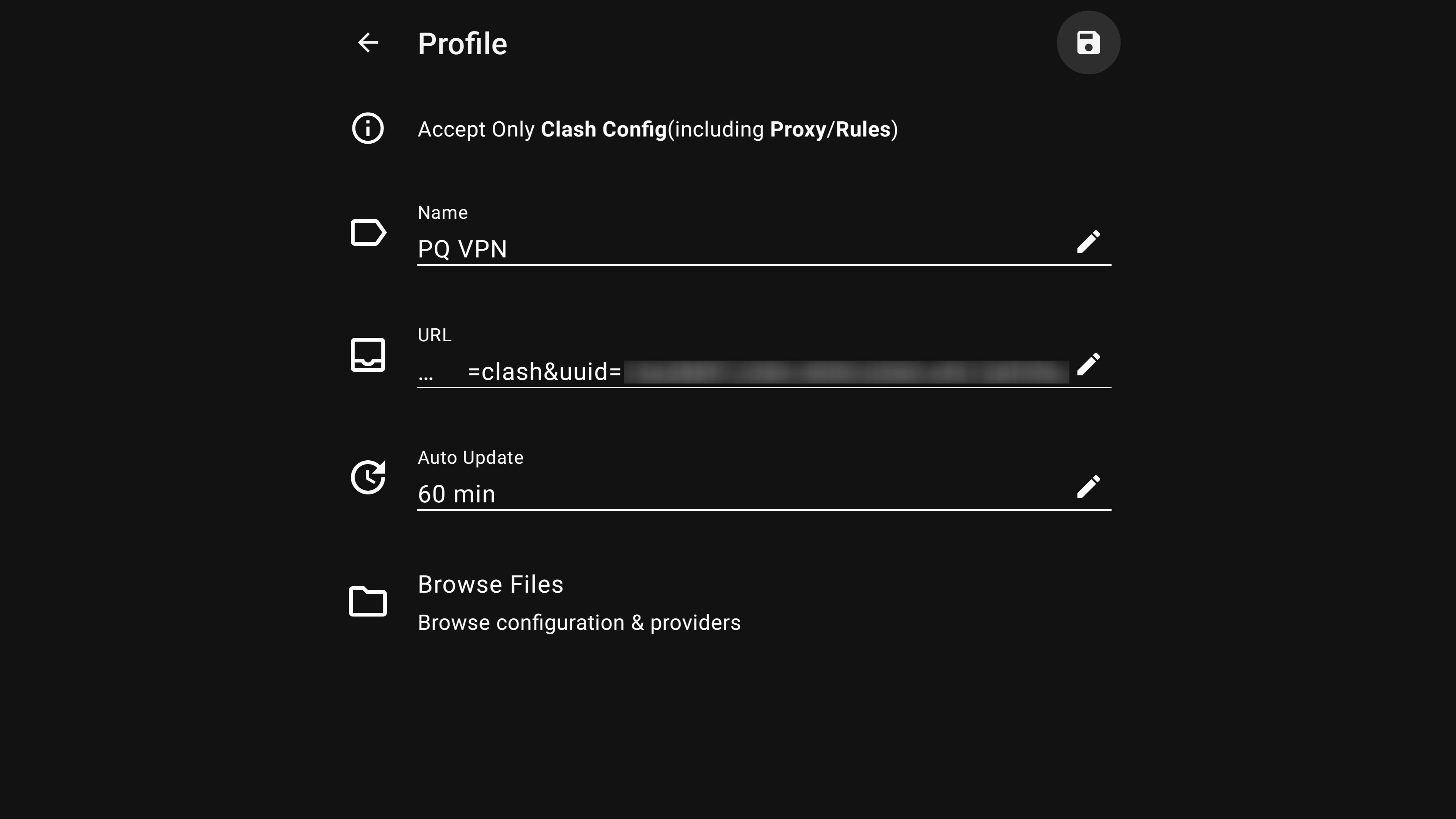
Profile settings when importing from URL
You can enter any profile name. In the URL field, paste the link to your subscription in clash format. In the automatic subscription update field, you can enter 60 minutes.
Automatic updates ensure that your list of servers is always fresh, for example, if a new server appears or any existing server is replaced, this information is automatically synchronized with your application.
The subscription link is available in the email and is accessible from your client area. In your client area, select VPN service and click the
Instructionsbutton.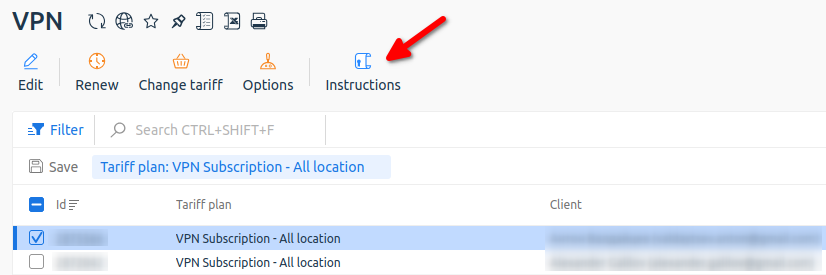
Getting instructions from your client area
Save the profile with the diskette button on top, after importing the profile needs to be activated. To do this, select the profile and click on it so that a round marker appears on the left.
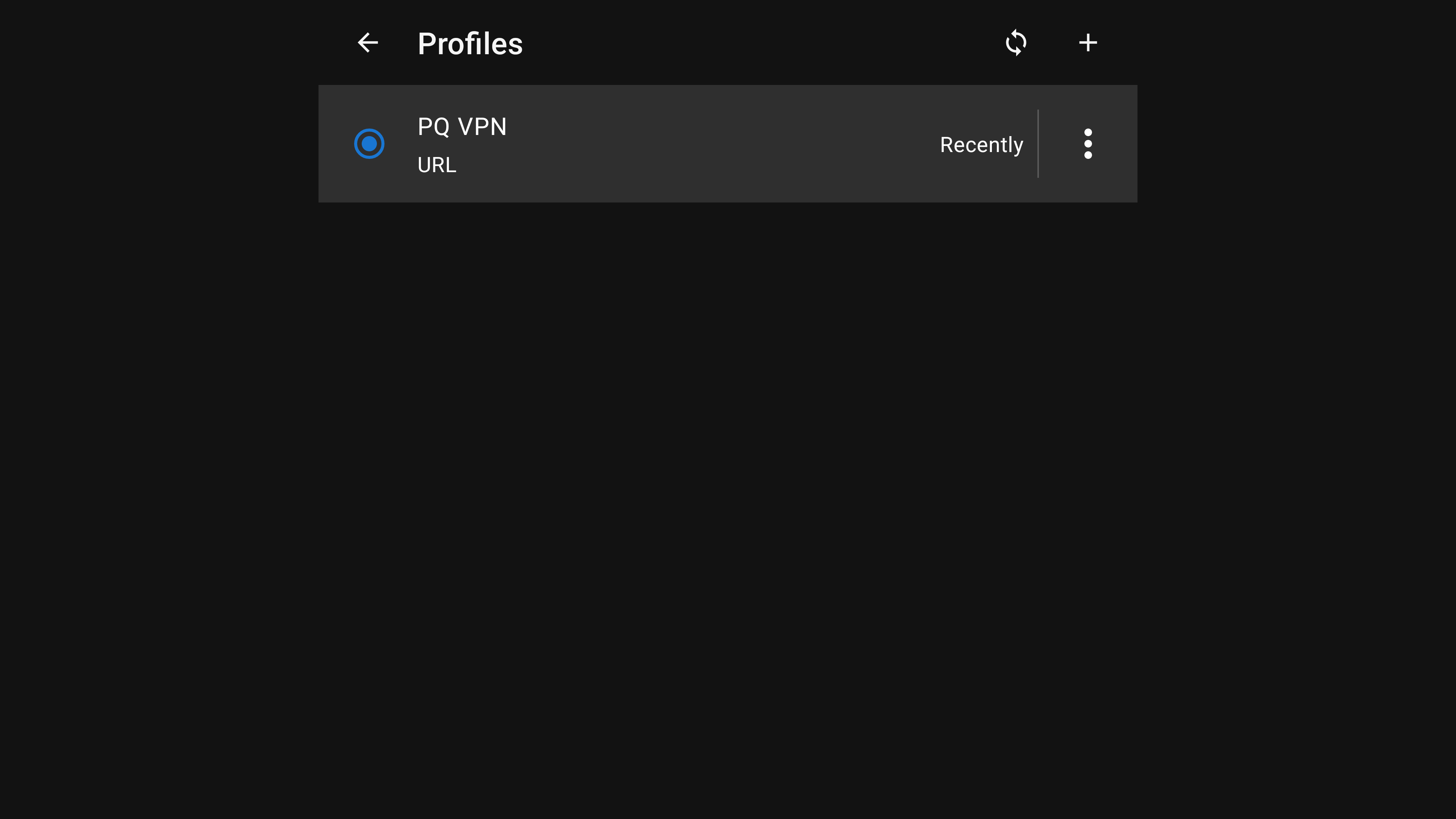
Activating a profile after import
Connect to server
- Return to the main menu of the application and start the VPN by pressing the first button
Stopped.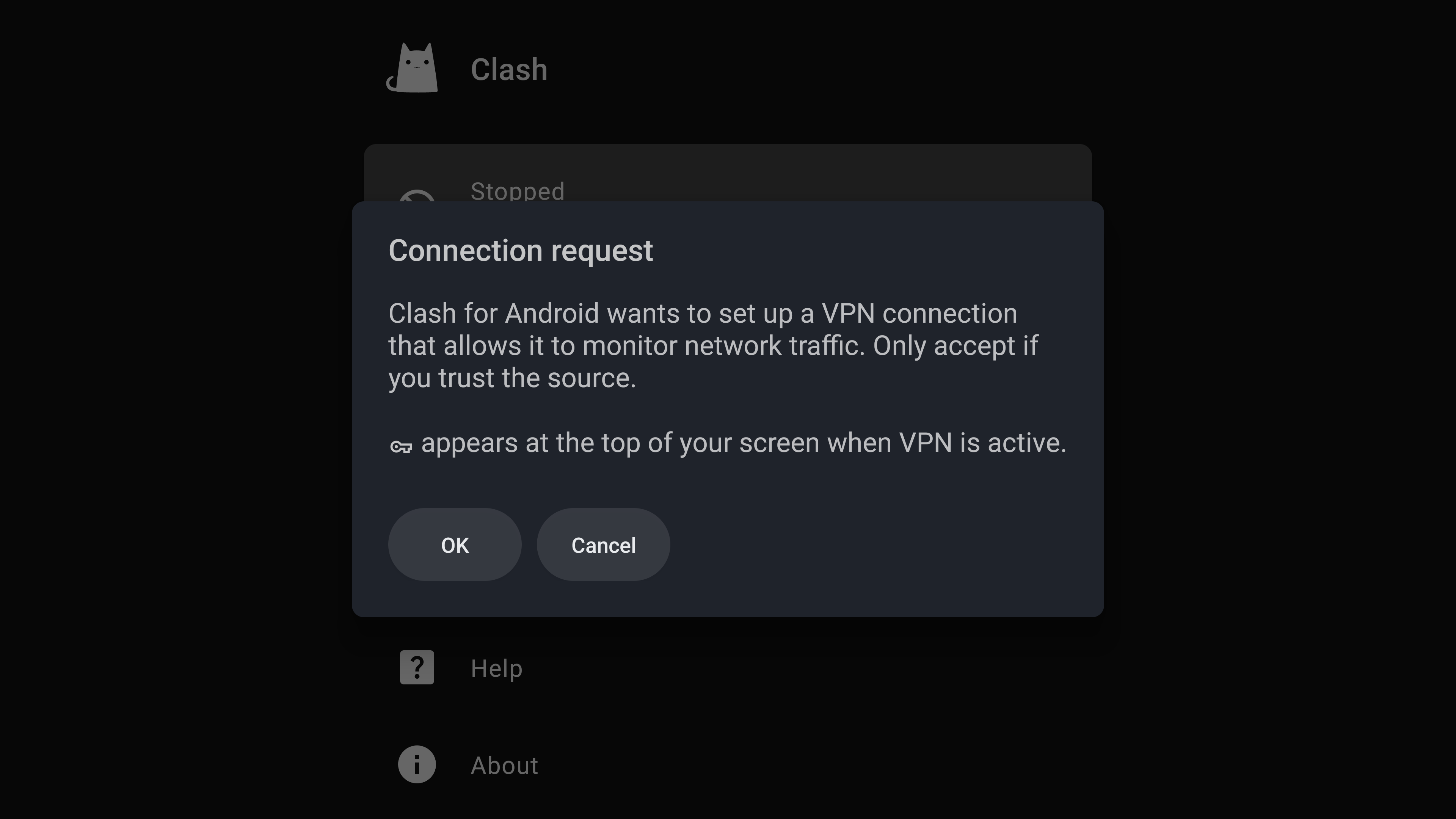
First connection to VPN
When connecting for the first time, you will need to grant permission to establish a VPN connection in the system.
- After activating the connection, the status will change to
Running, and below will appear the itemProxy, go there and select the server you are interested in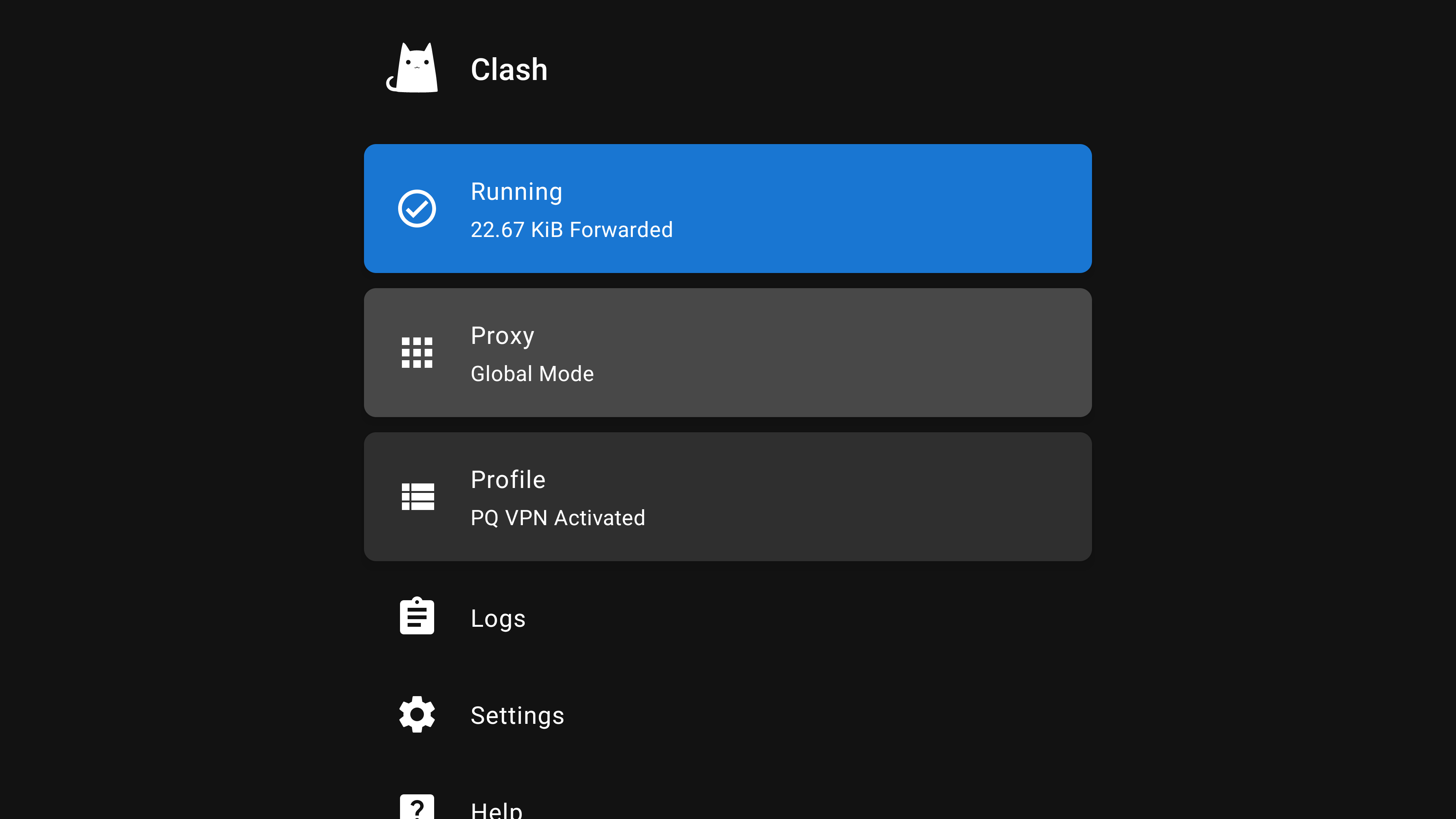
Activating a VPN profile in the application
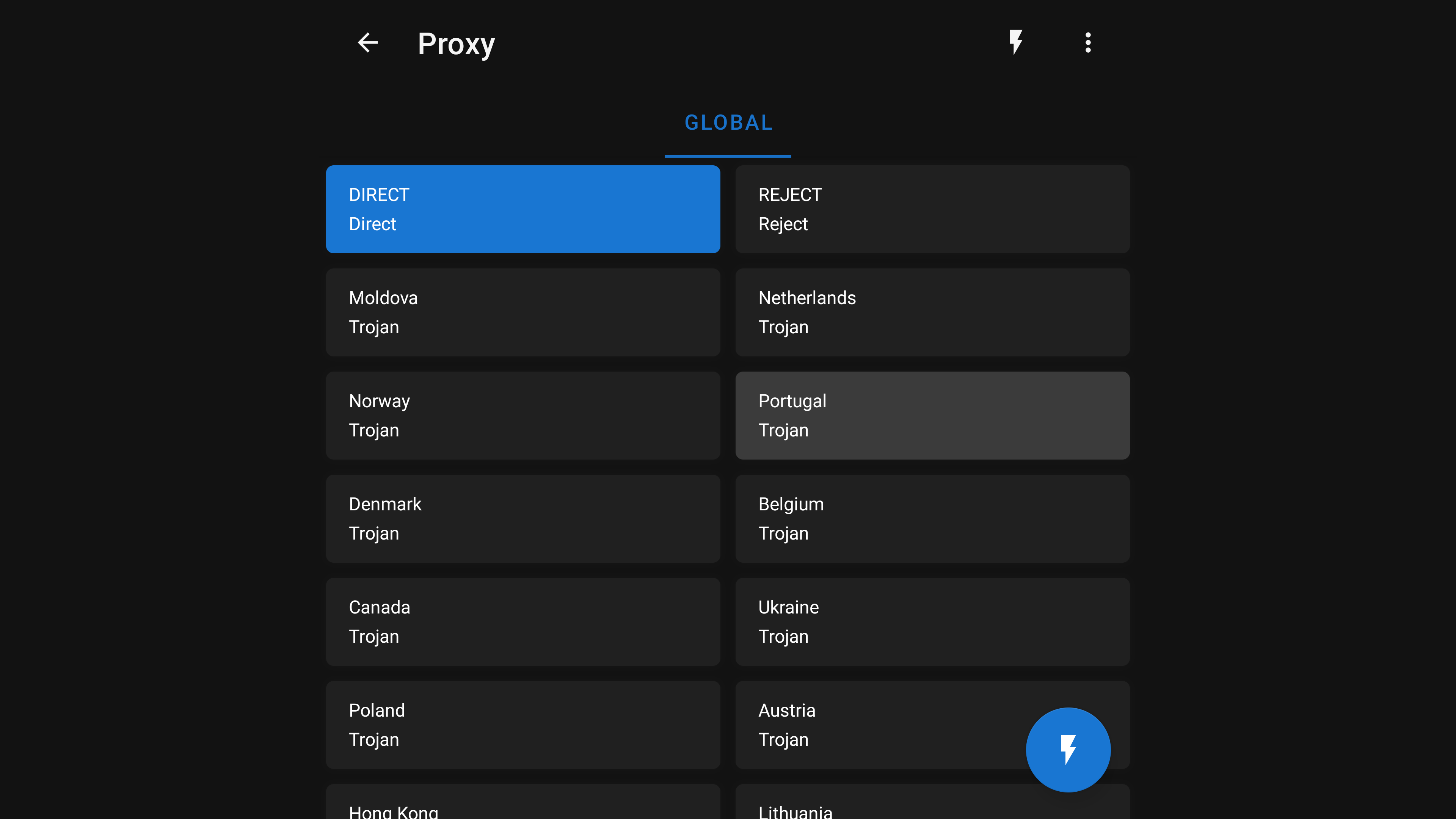
Selecting a location in the application
Please note. Servers include DIRECT and REJECT.
DIRECT - a policy where traffic is sent directly, bypassing the VPN server.
REJECT - a policy that blocks all network traffic.
When VPN is not needed, you can simply select DIRECT instead of disabling the program.
- Check the VPN by opening YouTube or loading the site https://whatsmyip.com from the browser on the TV
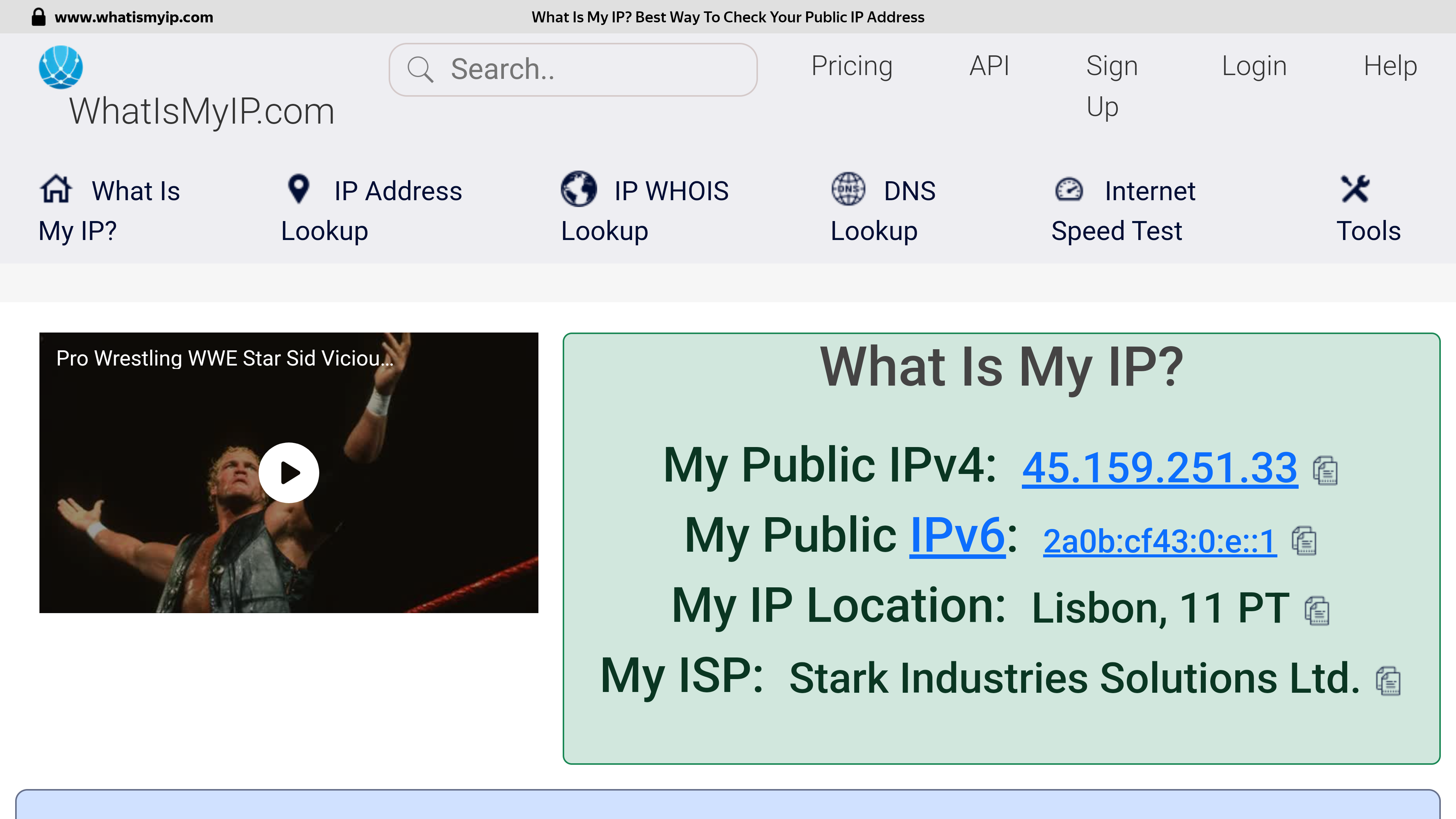
Checking the address after connecting to a VPN server in Portugal
If successful, you should see that your connection is going through another country.
Please note. The best performance is achieved when using a wired connection. The speed is affected by the geographical distance from the VPN server, the backbone internet provider channels between the check points, the current channel load at your Internet provider and the VPN server, the tariff plan of your Internet connection and other factors that cannot be influenced from the outside.
If selected location is unstable, just try to select another one to get optimal internet access.
FAQ
Alternative keyboard
The subscription link can be entered either manually (it takes a long time, you can make a mistake), or pasted from the clipboard. To do this, you can open a browser on your TV, then open, for example, the Web version of Telegram, then send the link to your chat and copy it from the chat on the TV.
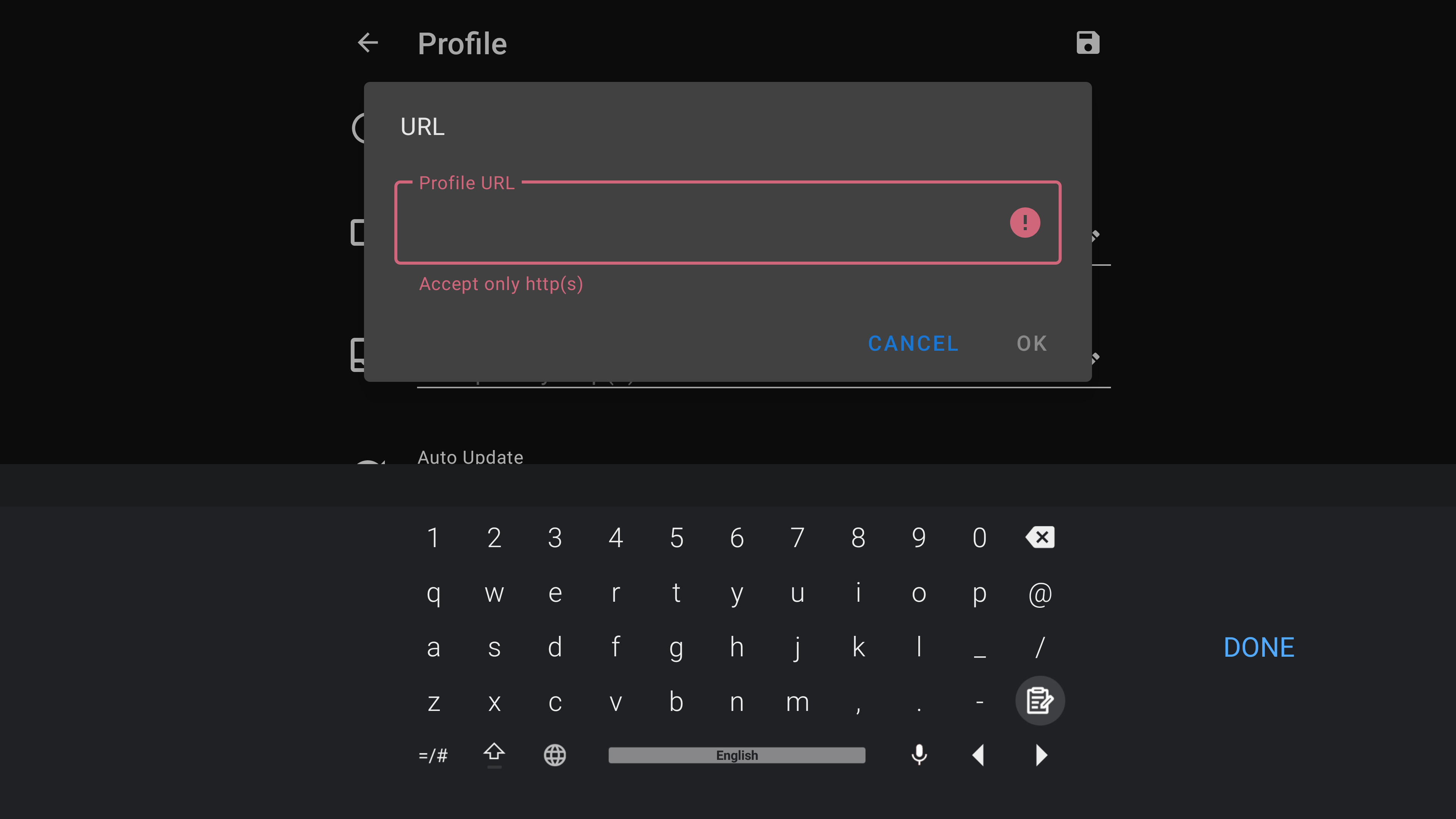
If the standard Gboard keyboard does not allow you to paste a link from the clipboard, you can install a third-party keyboard
For example, LeanKeyboard LeanKeyboard app on Google Play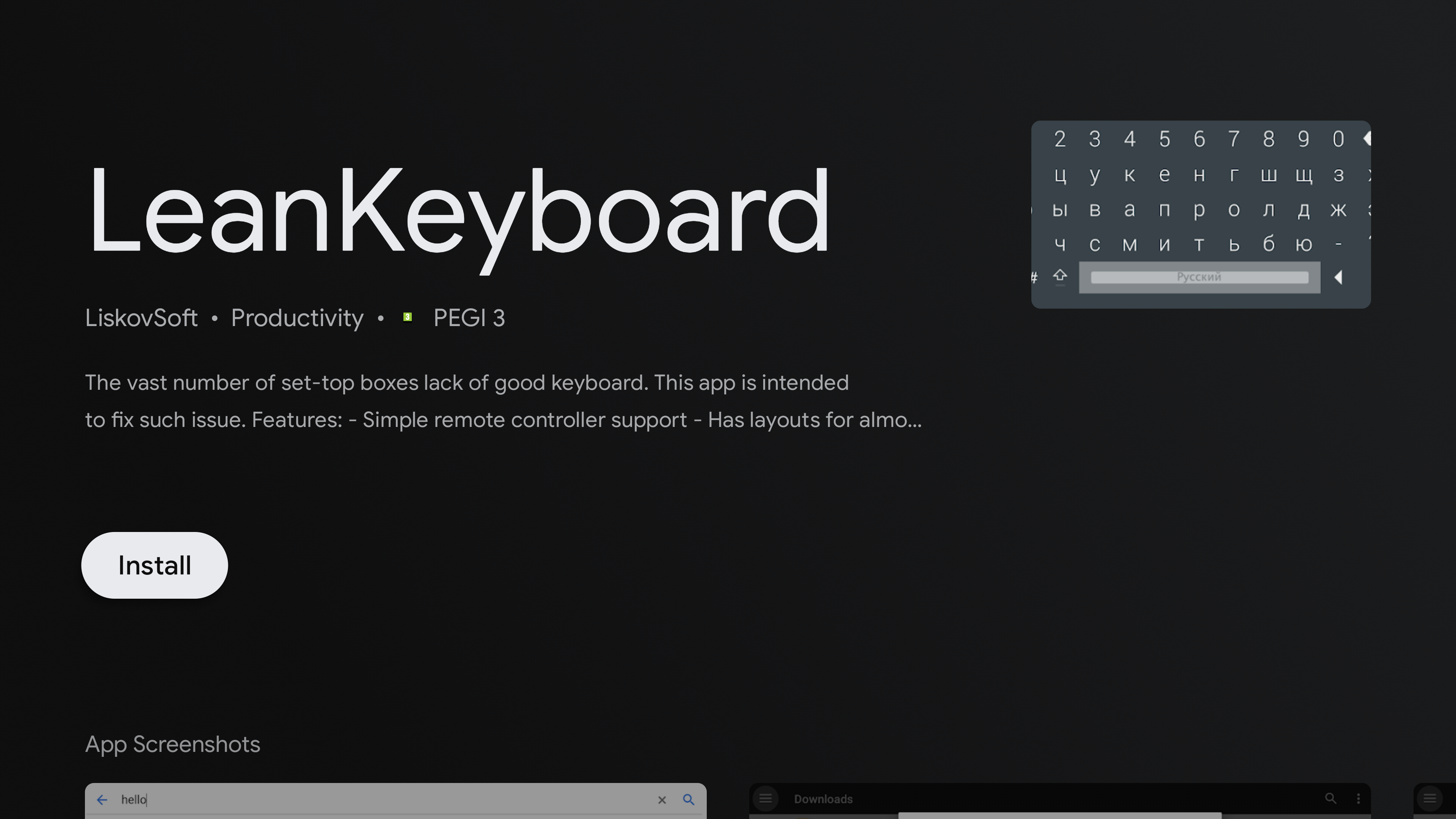
This keyboard contains a separate button for pasting from the clipboard, this button is highlighted in the screenshot (bottom right): Paste from clipboard on LeanKeyboard