Here you can find Step-by-Step guide how to connect to the VPN on MacOS with Apple Silicon CPU, it’s processors M series.
This guide is only relevant for Mac computers with Apple Silicon processors. If you have a Mac with an Intel processor, use the guide for Intel processors.
Check the list of devices if you are not sure what processor your device has at link
Step-by-Step guide
Install application
Open App Store, find and install
Streisandapplication, or open direct link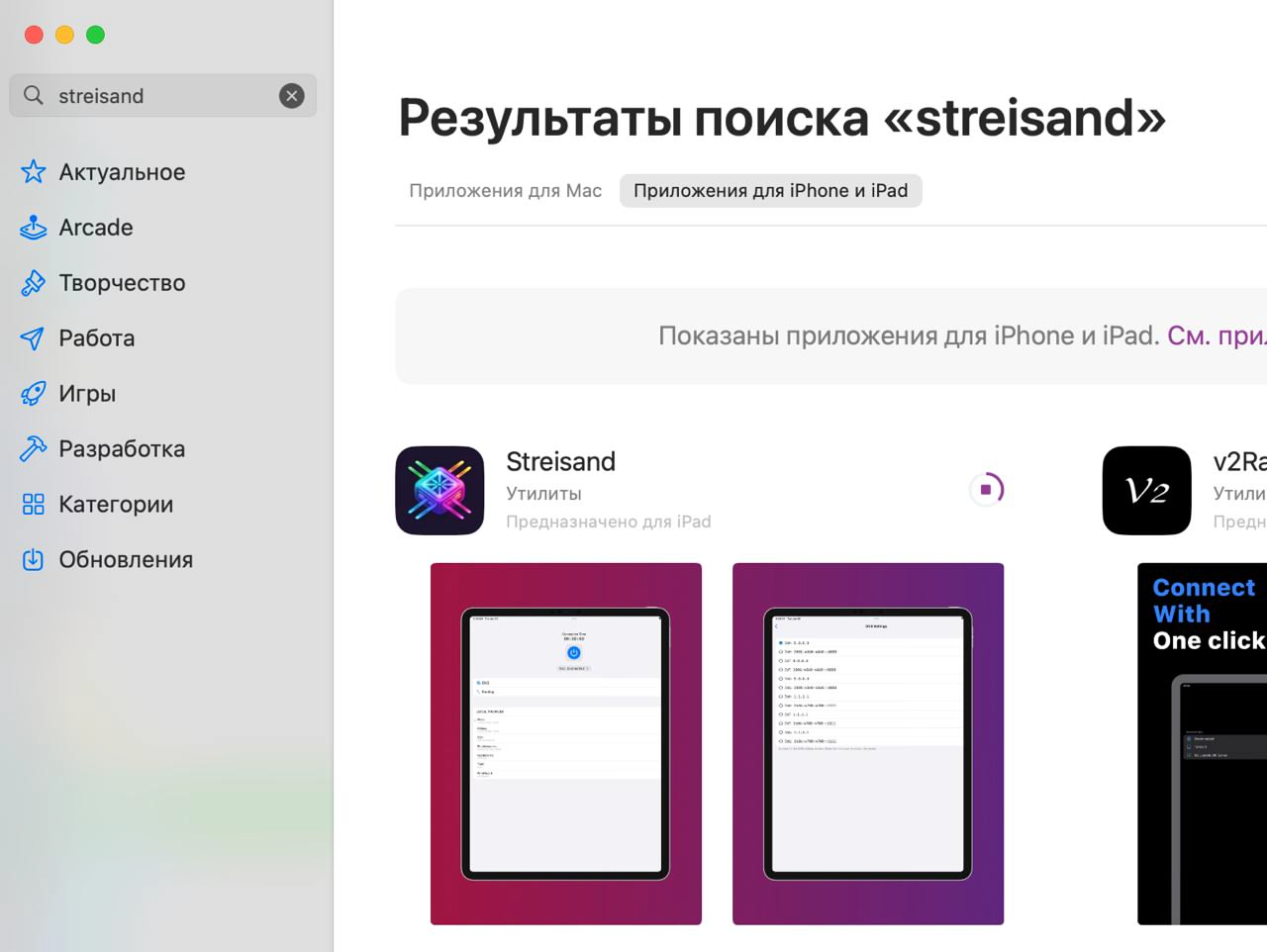
Streisand application in App Store
Launch application
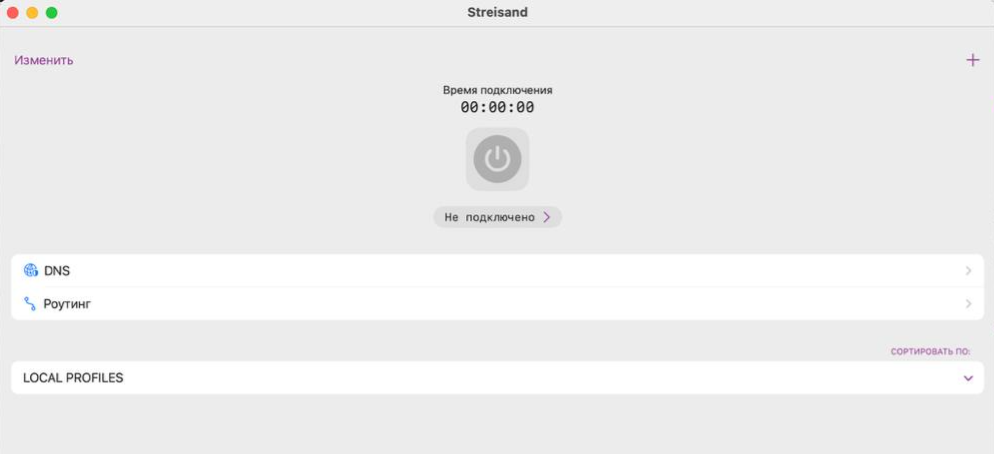
Streisand application interface
Import profile
- Copy subcription link to the clipboard.
The subscription link is in the email and is available from your client area, select your service and click the
Instructionsbutton.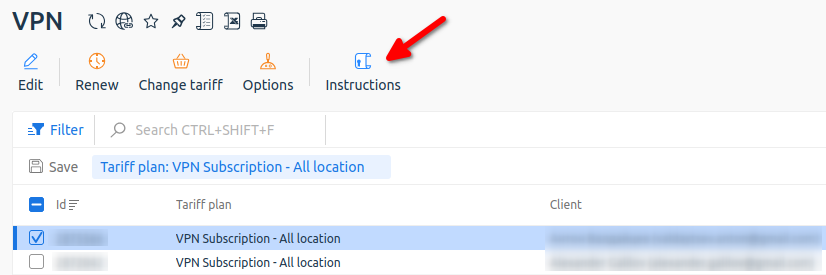
Getting instructions from your client area
Please note: You do not need to copy the subscription content, only the link is required for import.
- Click
+and selectPaste from clipboard
Subscription import into Streisand
Connect to server
Select VPN location and click connect button on top.
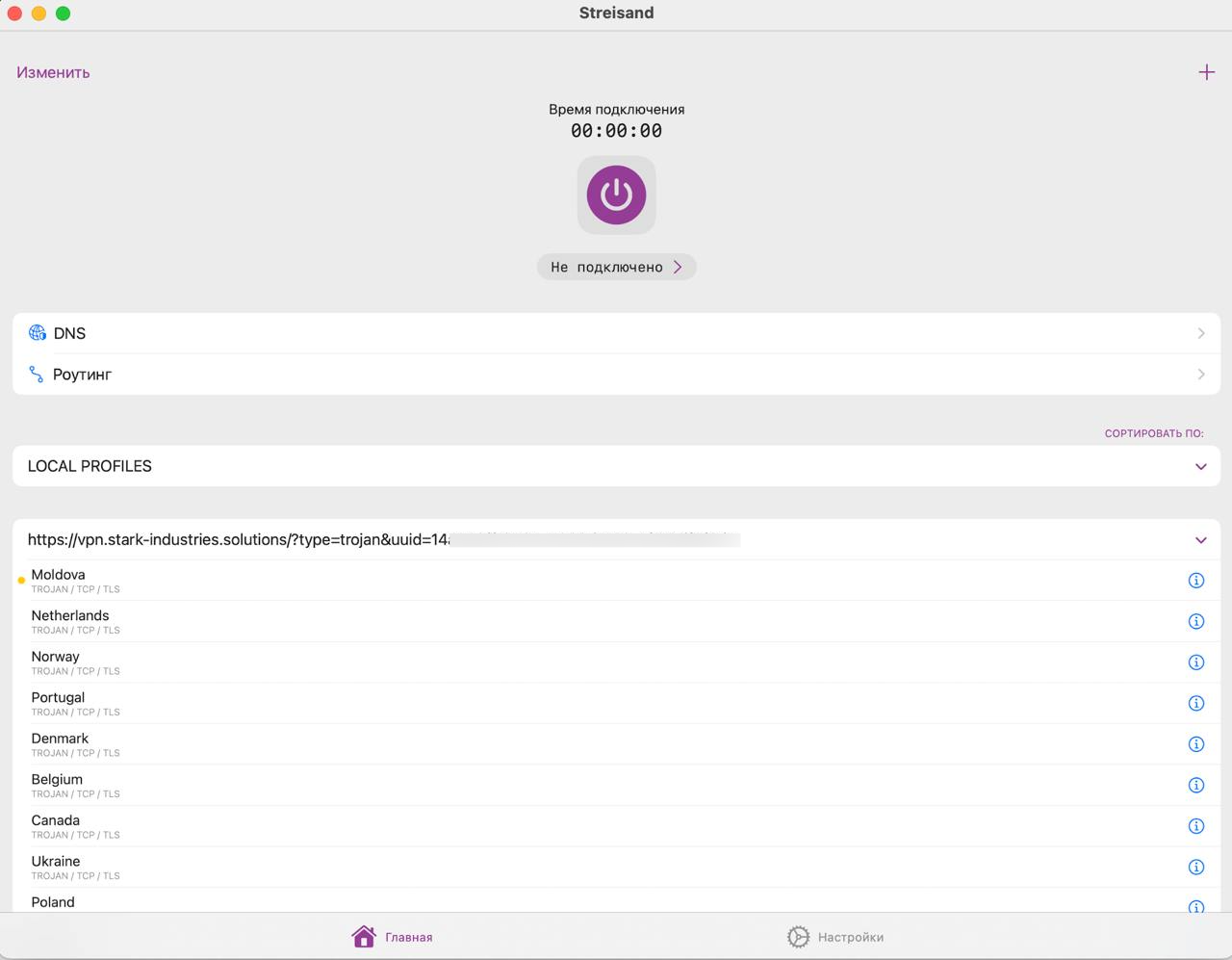
Select VPN server to connect
When you first connect, you will need to give permission to the application to create a VPN connection.
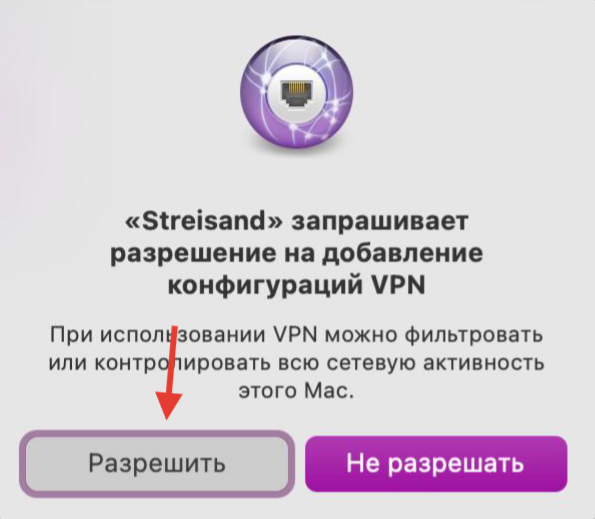
First connection to VPN
To check if your VPN is working, you can open: https://www.whatismyip.com/
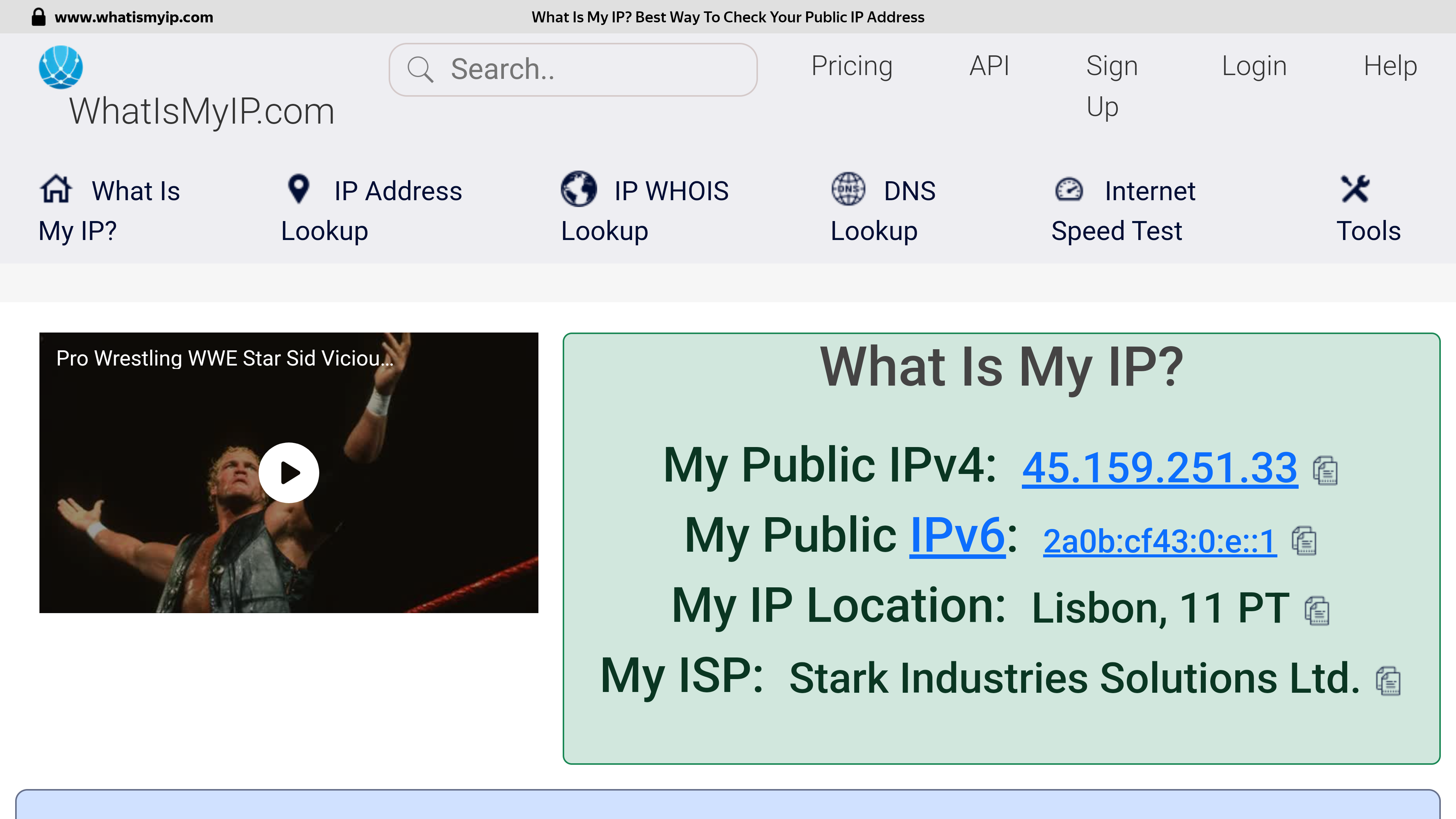
Checking the address after connecting to a VPN server in Moldova
Please note. The best performance is achieved when using a wired connection. The speed is affected by the geographical distance from the VPN server, the backbone internet provider channels between the check points, the current channel load at your Internet provider and the VPN server, the tariff plan of your Internet connection and other factors that cannot be influenced from the outside.
If selected location is unstable, just try to select another one to get optimal internet access.

Result of speedtest Moldova -> Netherlands: https://www.speedtest.net/result/16618694682