Here you can find Step-by-Step guide how to connect to the VPN with the Windows.
Step-by-Step guide
Install application
Download application for Windows by link
Run the installation and follow the steps of the installation wizard:
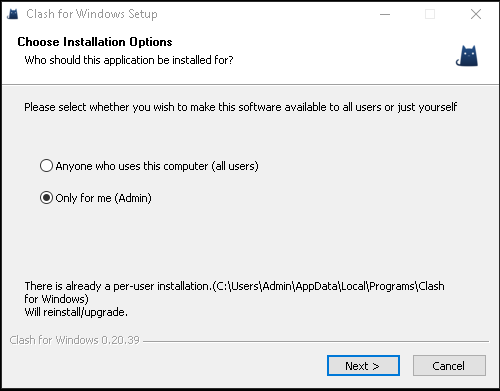
Installation wizard
Run the application as Administrator, the shortcut is on the desktop:
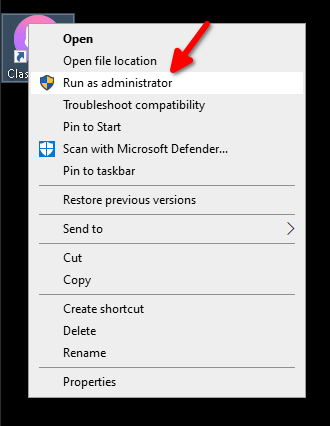
Launching an application from a desktop shortcut
Please note. The application requires Administrator access to operate the TUN mode.
In this mode, the application creates a virtual network interface through which network traffic passes. This is necessary so that all applications access the Internet through the VPN server.
Go to
General. EnableTUN mode.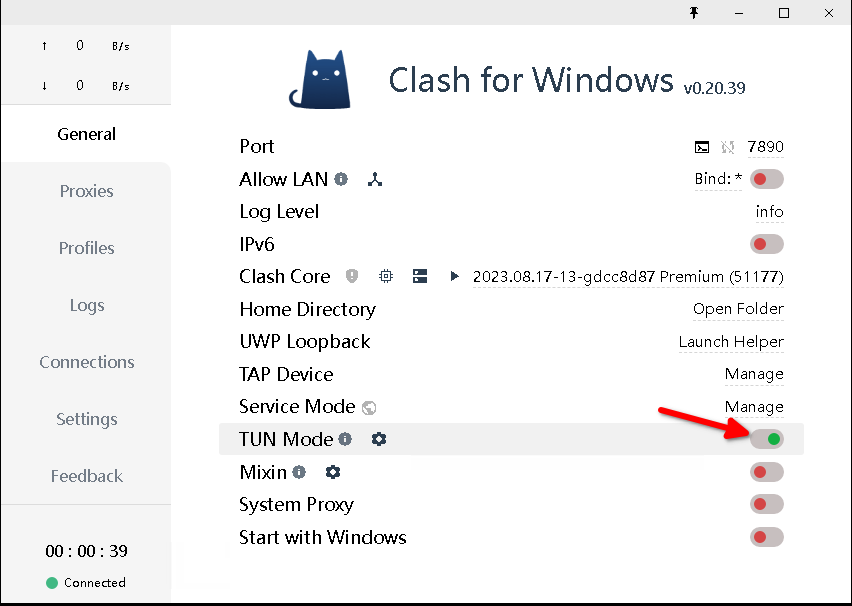
Clash for Windows application settings
Go to
Settings. Enablebreak connection when proxy change.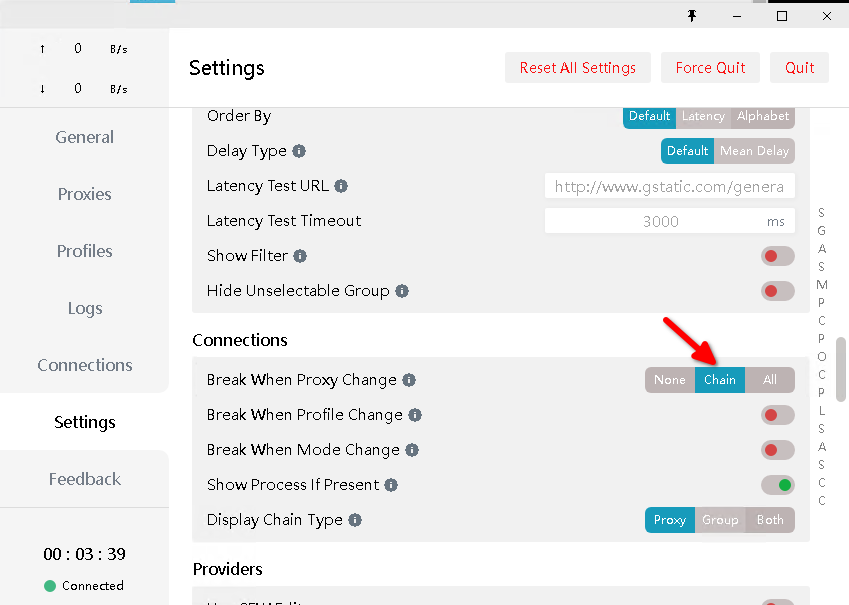
Connections breaking when proxy change
Import profile
Go to
Profiles. Put subscription link and clickDownload.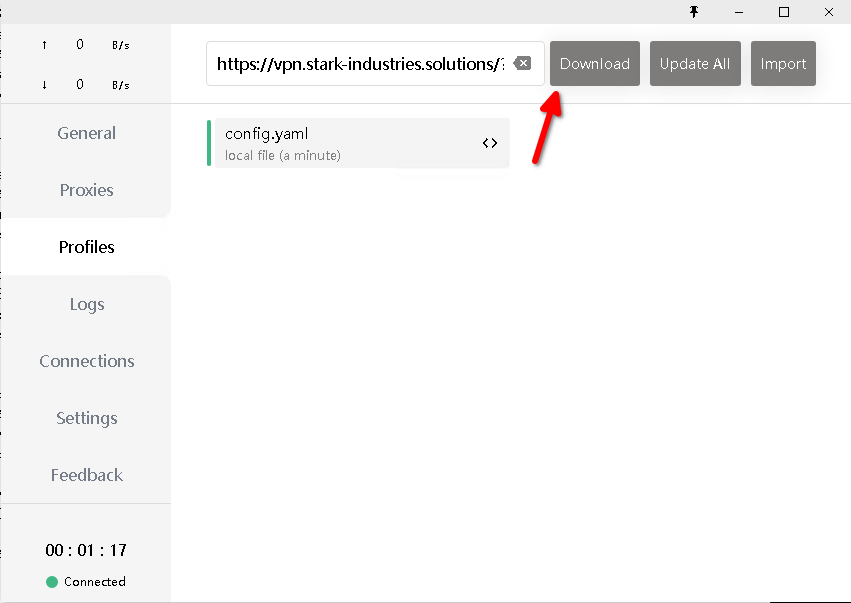
Subscription import into Clash for Windows
The subscription link is available in the email and is accessible from your client area. In your client area, select VPN service and click the
Instructionsbutton.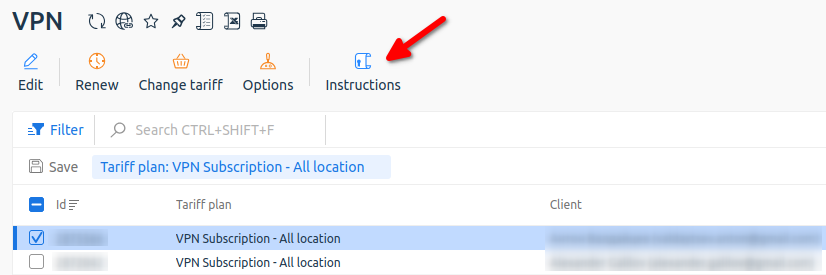
Getting instructions from your client area
Connect to server
Go to
Proxies. EnableGlobalrouting mode.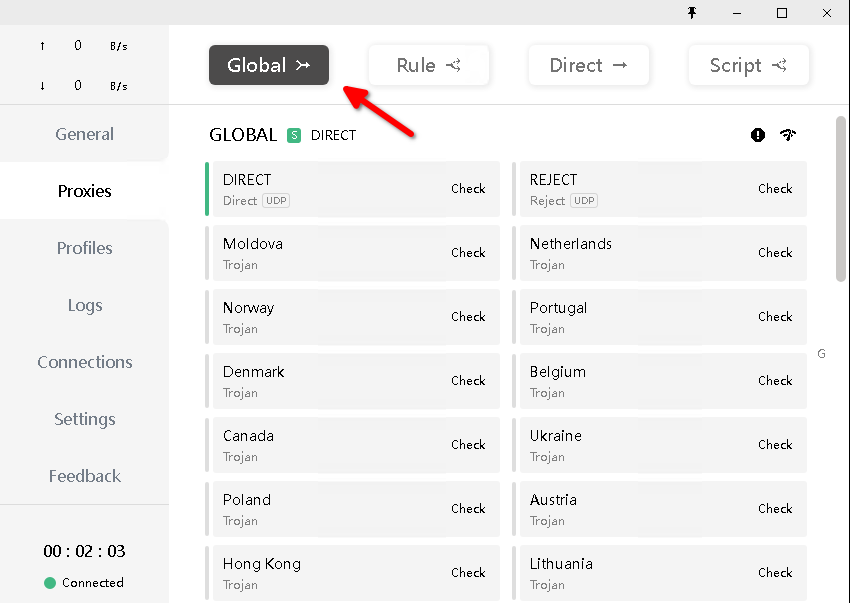
Selecting the routing mode
Select specific server and check VPN connection.
Please note. Servers include DIRECT and REJECT.
DIRECT - a policy where traffic is sent directly, bypassing the VPN server.
REJECT - a policy that blocks all network traffic.
When VPN is not needed, you can simply select DIRECT instead of disabling the program.
- To check if your VPN is working, you can open: https://www.whatismyip.com/
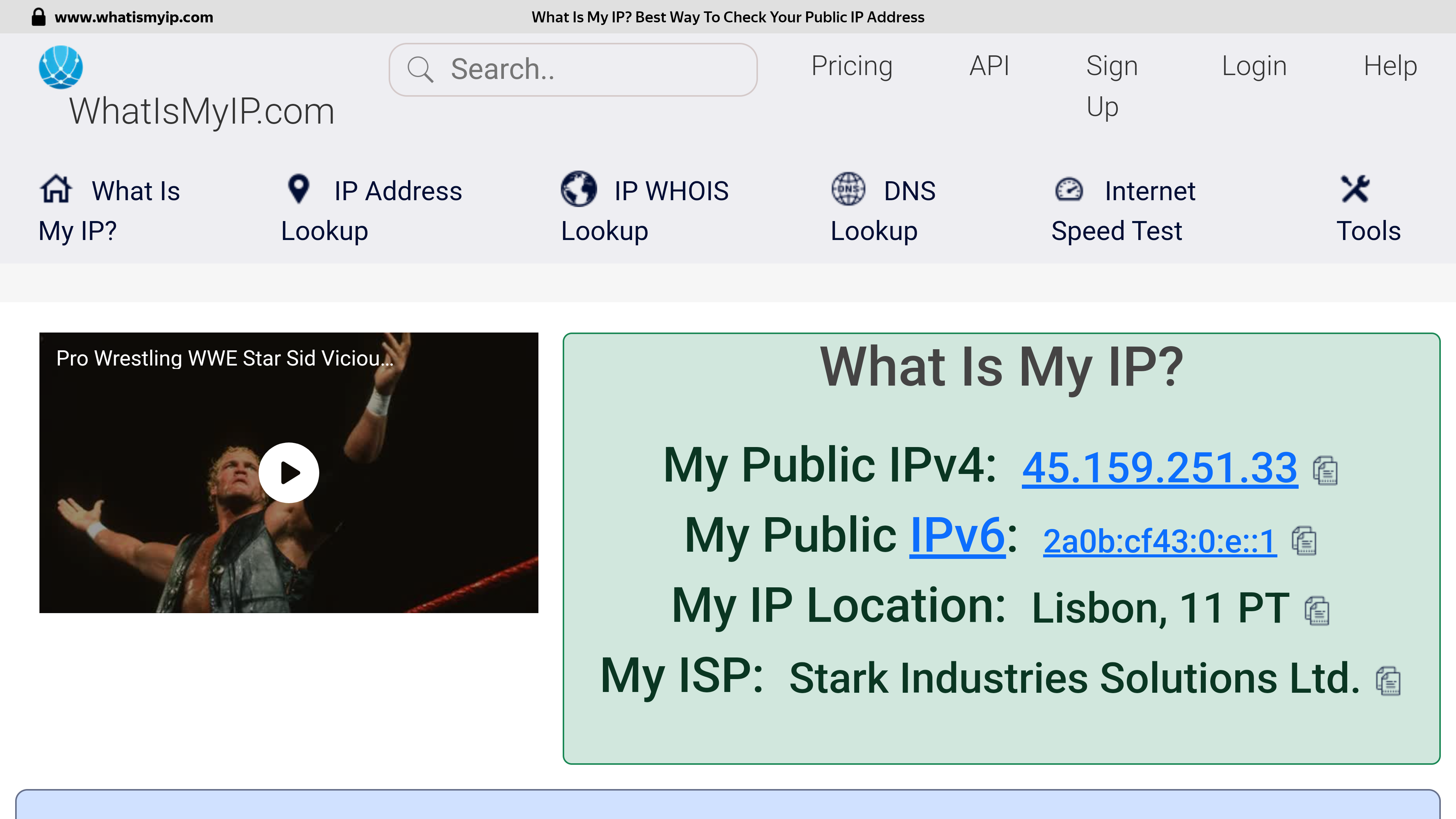
Checking the address after connecting to a VPN server in Portugal
Please note. The best performance is achieved when using a wired connection. The speed is affected by the geographical distance from the VPN server, the backbone internet provider channels between the check points, the current channel load at your Internet provider and the VPN server, the tariff plan of your Internet connection and other factors that cannot be influenced from the outside.
If selected location is unstable, just try to select another one to get optimal internet access.

Result of speedtest Moldova -> Netherlands: https://www.speedtest.net/result/16618694682